
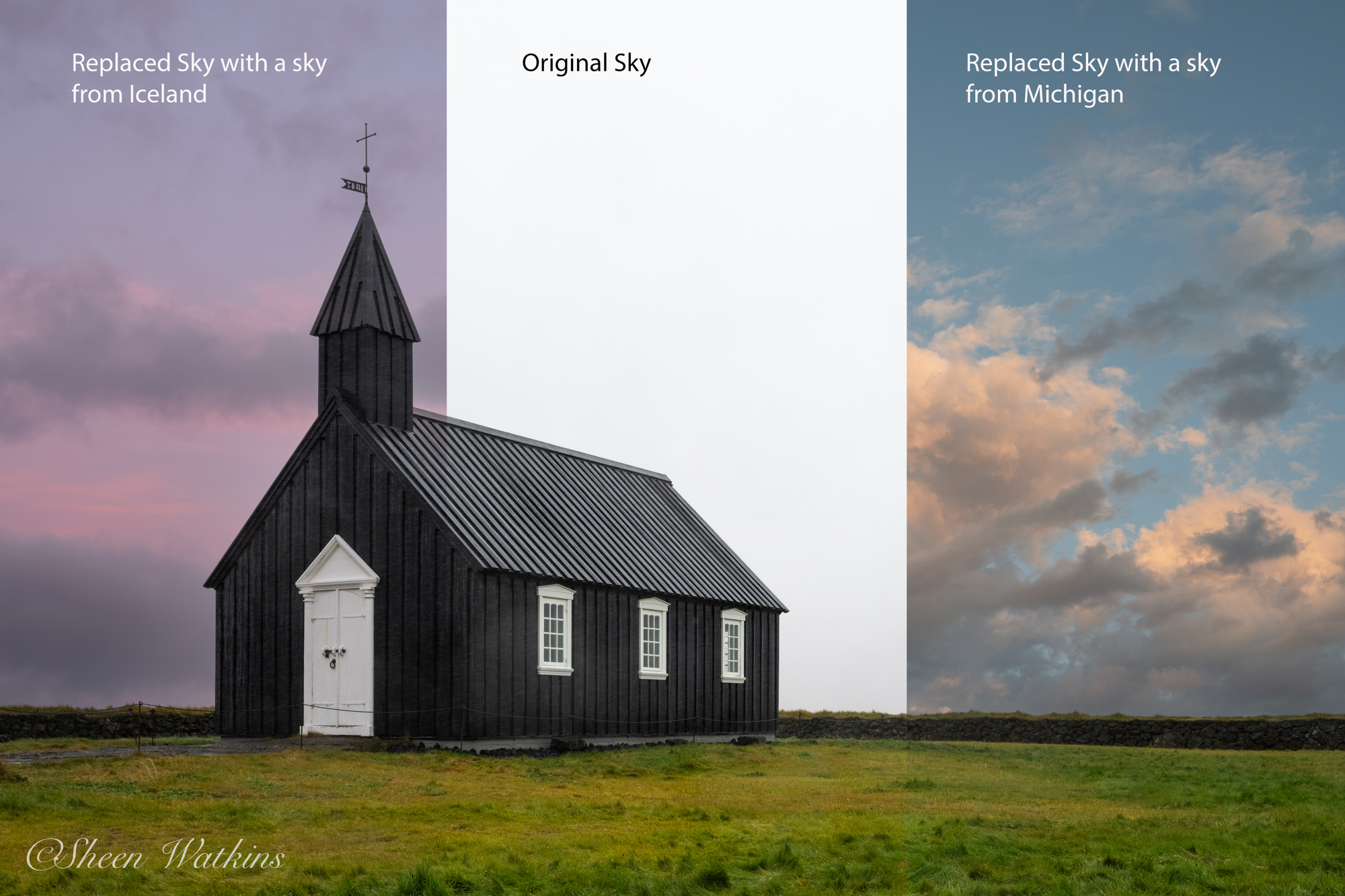
Why and how do we accomplish an ethical sky replacement in Photoshop? The ‘why’ is important! In today’s world of AI in art, many photographers choose to stay true to their roots. Taking and using their photos. Replacing a sky using your own sky images fits within ethical guidelines for the majority of contests (you cannot do this in the Nature category).
Plus, this gives additional creativity and flexibility when skies are not cooperating. Interested? Read on.
You know the routine. You travel, trek, plan, check the weather apps, and spend hours getting into position for that landscape shot — the one you’ve been dreaming about. Then you get there… and the sky is just meh. Flat. Gray. Dull. Or sitting somewhere in that “almost interesting but not quite” zone.
Recently in Iceland, my desired shot was thwarted by flat, dull skies. It was dark, wet and blah. While I made the most of the situation, my intention was not in the cards.

It happens to all of us. And honestly, sometimes you can nail everything in the scene except the sky. Sure, we can shoot without the sky. There are those images though where the sky adds the needed element to strengthen the composition.
That’s where a simple, fully ethical sky replacement comes in — using your own sky images. Your composition stays yours. Your light stays yours. And the sky? Still 100% yours. Just picked from a hour, day or even location.
Sheen Watkins
Why I Always Photograph Skies? Ethical Sky Replacement
Whenever I’m out chasing sunsets, sunrises, or dramatic cloud formations, I make it a habit to stop and capture the extra special ones. From blue skies with fluffy clouds to burner sunrises and sunsets, unique skies help add to our artistry.
This also includes shooting across focal lengths for a given sky. Multiple focal lengths gives options because you never know what mood you’ll want for a future photo. Plus, the sky focal length needs to align with the focal length of your subject. That is, unless you’re shooting for something creative. In that case, game on with your creative juices!
Over time, these sky images become a flexible, surprisingly helpful “sky library” that saves the day when nature doesn’t fully cooperate. I create a Collection in Lightroom to make those favorite skies easy to choose from and take over to Photoshop when needed. See Fall in Love with Lightroom Collections where the steps of organizing images into our own groupings is fast and easy.
Recently in Iceland, my desired shot was thwarted by flat, dull skies. My prior trip to Iceland, my desired shot of the same location was thwarted by a workshop leader making a bad decision. It was dark, wet and blah. While I made the most of the situations, my intention for the trip was not in the cards.
Examples of Ethical Replacement
The original image with a sky canvas of gray.

The image below is after I replaced the sky using an image captured earlier in the week.

My Workflow: Lightroom + Photoshop
I process my skies in Lightroom first, just like my landscapes. Basic adjustments, color corrections, and a quick organization pass so I always know what’s in my library. Once everything is synced and ready, Photoshop handles the sky replacement magic.
Ethical Sky Replacement Steps in Photoshop Using Your Own Images
1. Prep Your Landscape Image in Lightroom
- Import your landscape images.
- Make your usual edits — exposure, shadows, color balance, lens corrections.
- When ‘the photo’ is ready, right-click → Edit in Photoshop.
2. Open Photoshop’s Sky Replacement Tool
- In Photoshop, go to Edit → Sky Replacement.
- A preview panel appears showing your image with the default skies.
3. Add Your Own Sky & Build Your Sky Library at the Same Time
- In the sky panel, click the dropdown menu.
- Choose Create New Sky or Add Sky.
- Select one of your captured skies from your Lightroom library (export it first as a JPG – I go with full resolution to optimize image quality of the total final work).
Photoshop blends the edges, match lighting, and adjusts colors so the replaced sky looks natural rather than slapped on. You can tweak:
- Shift Edge
- Brightness
- Temperature
- Foreground Lighting
- Color Adjustments
A few nudges usually get you to a perfect match.
4. Fine-Tune the Mask
Photoshop automatically creates a group of layers and masks for full control. If you need to refine the mask — maybe around trees or jagged mountain edges — use a soft brush on the layer mask for a clean transition.
5. Save Back to Lightroom
Once you’re happy, save the file (just hit ⌘S / Ctrl+S) and it will pop back into Lightroom as a new TIFF or PSD. From there, finish any final touches.
Why This Keeps Your Image 100% Yours
There’s nothing wrong with replacing a sky when the light in the scene matches, and using your own skies preserves authenticity. You’re not borrowing from stock or fabricating scenes with random cloud formations.
These are your real skies you personally captured while out doing what you love. Sky replacement doesn’t have to mean “fake.” When you’re using your own skies, captured in real moments with similar lighting conditions, you’re still telling your story. You’re just choosing a different moment from your archive — one that amplifies the emotion you felt on location.
Final Thoughts
Landscape photography is full of surprises — some of them magical, others a little… anticlimactic. Building your sky library gives you a creative safety net. It keeps you from losing a good composition just because the atmosphere wasn’t in the mood that day. And with Lightroom and Photoshop working together, replacing that flat, uninspired sky is just a few clicks away.
