
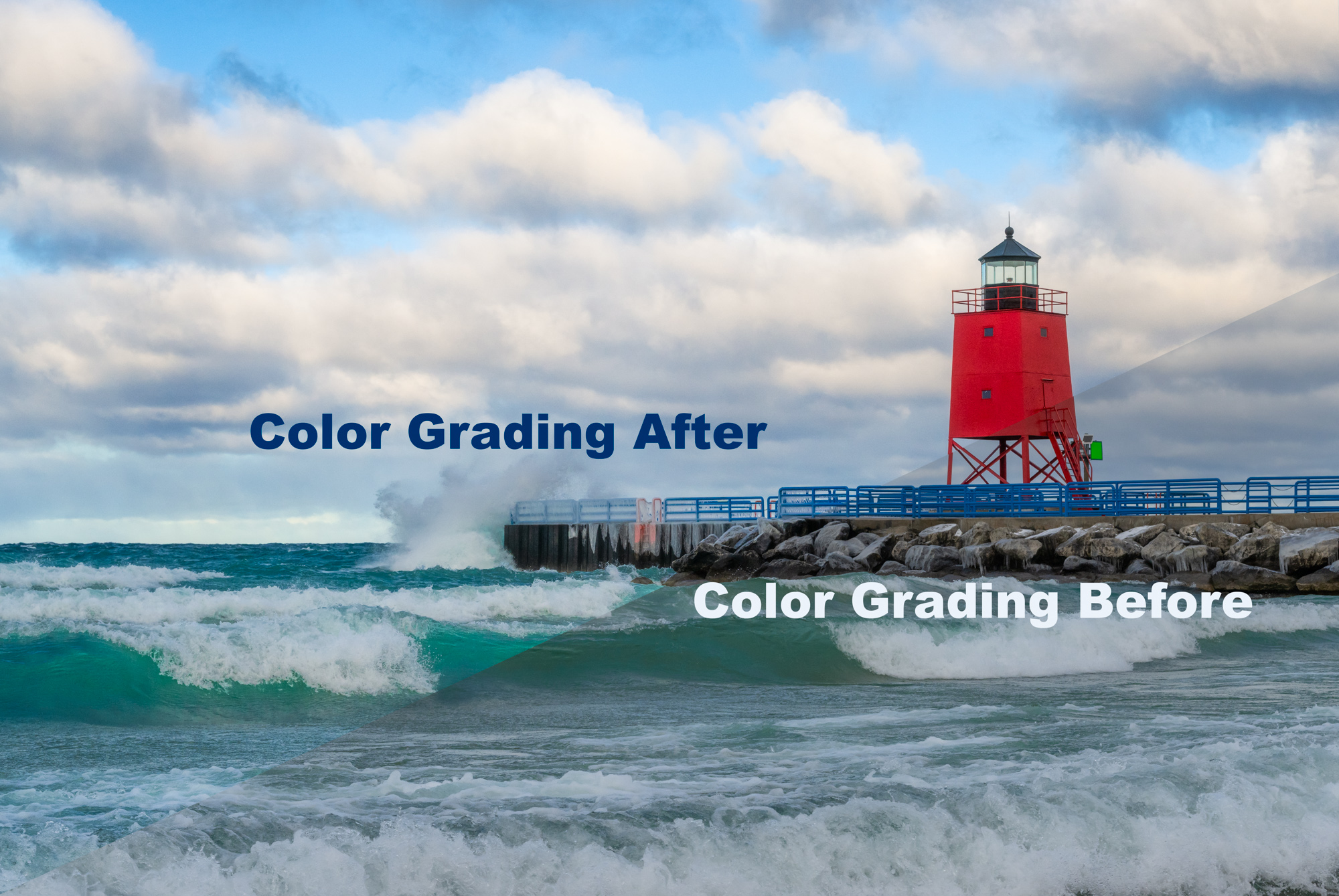
When do we need color grading? Let’s start at the moment of image capture. We all share those extra special moments in the field. You know the ones. The light shifts, the colors settle into something unexpected. Something wonderful.
For a brief window everything just works and the magic happens. The scene feels dimensional. Alive. You know for certain, as sure as your standing there, that this very image holds a wow factor.
Then you get home and the raw files?
The raw files feel a bit flat. The colors feel muted, not quite the intensity you experienced. Before moving past these images, hold on. Apply your traditional workflow edits, then roll on down to the color grading wheels. These wheels are less about correction and more about translation.
It’s the potential bridge between what the camera captured and what you felt.
Color grading isn’t about pushing saturation or making images louder. It’s about intentionally applying color to highlights, midtones, and/or shadows to elevate mood, depth, and cohesion—without overdoing it.


Take a look at the before and after using the complete views of our featured image above. These three wheels are powerful, creative levers within Lightroom enhancing image quality and artistry.
Why Color Grading Matters
Many photographers lean heavily on the HSL (hue, saturation, luminance) panel or global saturation and vibrance. I too rely on the HSL panel in my work.
Each photographer’s choice on which element to apply is a personal one. (Note: older versions of Lightroom offered Split Toning which is the predecessor to the color grading tool today). The HSL panel with it’s recent point color ability makes specific color enhancement even easier too.
However, color grading works differently. Instead of changing what colors exist, it influences where color lives within the tonal range in your image.
This distinction is important. Color grading allows us to:
- Add warmth or coolness selectively
- Enhance separation between subject and background
- Strengthen natural lighting
- Guide the viewer’s emotional response
- Bring cohesion of your emotion across the image
It serves as a catalyst for bringing out that layered, immersive feeling you experienced in the field. Color grading elevates without turning our images into something artificial.
Understanding the Color Grading Panel in Lightroom
Lightroom’s Color Grading panel is built around three primary color wheels plus on additional wheel for a final touch. They include a wheel for:
- Shadow adjustments
- Midtone adjustments
- Highlight adjustments
Below takes you through the elements and how to use them effectively.
The Color Grading Wheels (and How to Use Them)
The information below shares an overview of the wheels and sliders followed by how they work. Each wheel contains two controls and two sliders. You can just click on the one you want to adjust or you can select each wheel using the small circles at the top to make it bigger in the window.

- Hue (the angle around the wheel) – as the wheel is a circle, the numbers range from 0 – 360 as you drage/change the hue moving around the wheel
- Saturation (distance from the center) – measured from 1 – 100 as you drag/move outward to the edge of the wheel from the center.
Dragging the control around the wheel changes the hue. Dragging inward/outward increases saturation.
Below each of the wheels are two often-overlooked controls with sliders:
- Blending determines how smoothly colors transition between tonal ranges
- Balance shifts emphasis toward shadows or highlights
A higher blending value creates smoother transitions and a more natural look—great for landscapes and soft light. Lower blending values create more distinct color zones within your image. Balance is helpful when an image is highlight- or shadow-dominant, allowing you to bias the grading where it matters most.
Small moves across the wheels and sliders are usually enough. If the color looks overly bold, then back off a bit. As everything is reversible (just double-click the center of the wheel or slider and it resets to 0). The goal up to you. Are you reflecting the vibe you experienced? Or, are you pushing an envelope of creativity?
Shadows: Anchoring the Image
The Shadows wheel affects the darkest parts of your image. This is where depth and atmosphere live. Common approaches include:
- Cooling shadows slightly with blues or teals to add calm or mystery
- Adding subtle warmth for softer, more intimate scenes
- Using complementary color to offset highlight tones
Shadows are a great place to introduce color first. They can handle more saturation than highlights, but they should still feel grounded. Watch for muddy blacks or color casts creeping into neutral areas.
Midtones: The Heart of the Image
Midtones are where your subject usually lives—trees, buildings, faces, textures. The use of Midtone grading:
- Reinforces natural light temperature
- Adds cohesion between shadows and highlights
- Subtly guides emotional tone
There’s also a Global wheel and a set of fine-tuning controls that tie everything together across an image if needed. Each of these wheels lets you introduce color based on tonal values rather than specific hues in the image.
Because midtones typically dominate the image, small adjustments have impact. Think of this wheel as a gentle nudge rather than a push. Often, aligning midtones slightly toward warmth or coolness—without increasing saturation much—creates a natural, believable result.
Highlights: Light and Emotion
Highlights control the brightest parts of the image—sky, reflections, snow, mist, or directional light. This is where color grading can bring back that first light/last-light magic:
- Warm highlights enhance golden hour and sunrise scenes
- Cool highlights emphasize winter light or overcast moods
- Slight color contrast between highlights and shadows adds dimension
There’s no right or wrong way to apply the wheels and sliders as how we post process is an individual choice.
Global Wheel in Color Grading: A Little Goes A Long Way

The Global wheel applies color across the entire tonal range. It can be useful for:
- Subtle overall warming or cooling
- Unifying a color palette across an image or series
Consider the Global Wheel as an end fine-tuning tool versus a primary adjustment.
Elevating Artistry Without Overdoing It
Color grading supports the story your image is already telling. A few suggestions when using:
- Start subtle and build slowly
- Toggle the panel on and off often
- Zoom out—color grading should work at a distance
- Let light direction and tones guide your color choices
- Trust your field experience and emotion
Color grading compliments global and local adjustments and your thoughtful HSL work.
Intentional Color Creates Lasting Impact
When we apply color selectively versus global saturation, or saturation of a given color, we move beyond basic editing and into individual artistry. We’re not relying on overdone saturation to “make it pop.” We’re deciding how the image should feel, where the eye should rest, and how our memory and imagination pull it all together.
